B2B sales is broken. Buyers don't want to work with sellers, but also don't have confident in their own team's ability to make a successful purchase. Enter the Framemaking approach. Dig into insights from Adamson and Schmidt's 'The Framemaking Sale', and learn what on earth you can do with your pitch deck as a result
Blog 

10th Jul 2026
How do you make a great group presentation?
- Written by: Hannah Harper
- Categories: Presentation skills, Sales presentations, Sales messaging
Pot luck dinners are a slice of cultural mayhem. Each guest turns up with a dish: macaroni cheese next to a mixed berry crumble, flanked by two similar-but-different meat stews, squished next to seven bags of the same tortilla chips. Your plate – though tasty in its individual parts – becomes a melting pot of sauces and flavours: nothing quite harmoniously complementing anything else. This is what group presentations can feel like. Everyone has worked hard on their own dish, but together they form nothing cohesive. Over the course of this article you’ll learn how to make your group presentation as impactful and choreographed as one of Carmy’s tasting menus, without having to fight your co-presenters on the way.
How to use this article
There are broadly two categories of group presentation: corporate and academic. Take a look at the following section to see where you fit, and then dive into the method to see how you can apply the principles to your situation.
Different types of group presentations
Corporate group presentations
Organisations are made up of skilled individuals. Sometimes individuals with the same skills work together to do deep research into one specific topic. Other times individuals with different skills come together to provide a holistic approach to something. The most common vehicle for sharing these thoughts and ideas is a presentation – a chance where the team can walk through everything to a captive audience. There are three common scenarios for this:
- Something new (point in time): You might be called on to present your findings if your team has just discovered something new. It could be the results from a significant scientific study, it could be a new product reveal, it could be an external factor that has caused change in your organisation. Whatever the topic, the information you’re presenting will be new to your audience.
- Reporting back (regular): Presentations are commonly used for quarterly updates and results reporting. Where some of the findings might be new to the audience, the format isn’t, and everyone knows – broadly – what to expect.
- Persuading (pitches): A sales pitch is a type of group presentation. Often they’re a coming-together of different specialists to form a cohesive overview of a product or service. These presentations are written with persuasion at the heart and more so than any other type they need to be aligned and consistent. If you treat your sales pitch like lots of mini presentations with a different person creating and delivering each part, you’ll end up with an output that feels disjointed and disconnected.
Academic group presentations
It won’t be news to anyone that the presentation at the end of a group project can be the bane of many students’ academic careers. Accountability is difficult to enforce, and this can open you up to an unequal division of labour and inconsistencies in the content itself. But these projects can also be hugely rewarding – you just need to identify the right approach. Here are a couple of instances where you’ll likely need to create a group presentation:
- Reporting your findings: This is closely linked to a project you’ve been working on. The project is the bulk of the work and the presentation is the way you report that back to your classmates and teachers at scale. In order to do your project justice, you need a great presentation.
- The presentation is the project: Alternatively, the task may be the presentation in and of itself. You’ll be graded according to how well you work together as a team to create a cohesive output.
Incidentally, this isn’t the only time you’ll come across presentations in academia. At some point you may have to deliver a dissertation defence presentation, or present your research with an academic poster. We have articles to help with both of these topics:
- How to make a killer dissertation defence presentation (coming soon)
- How to create beautiful and effective academic posters in PowerPoint
The method
Whatever your context, there are six steps to follow in order to get a great group presentation. Use the links to jump to your favourite section, or grab a cup of something hot and start at the beginning.
- Write the story
- Nominate subject-matter experts
- Choose a collaborative tool
- Create a consistent visual language
- Review your content
- Practise as a group
If you’re considering when or how to use AI in your project, we have some insight on that too.
Write the story
For a group presentation to be successful it needs to have a cohesive argument: clear insight that ladders up to key takeaways. And for that you need to decide on the story you’re going to tell at the outset – and you’ll need to do it together.
- First decide on your single idea – the key takeaway you want in your presentation. And then build your story to lead to that single idea.
- Next, choose a plot. Stories help to engage audiences; they connect disparate pieces of information into strong sequences. There are generally considered to be 7 main plot shapes, so decide which one best fits your single idea. Maybe it’s the rags to riches of a research project that started with a significant problem, but found real insight at the end. Maybe it’s overcoming a monster of an external factor your organisation is having to overcome. Maybe it’s a journey to talk through an academic argument by showing how each piece of knowledge leads to another, ending in a satisfying conclusion.
- Once you have the plot you can map the different pieces of content you’ll need. If anything doesn’t help you reach the conclusion of your single idea, it’s not worth including in the presentation. Taking this allows you to pre-edit before you get into the slide creation stage.
- Finally, flesh out the outline and write a short summary of each point you want to follow and how it fits your single idea.
This gives you the structure of your presentation, so put each summary statement on its own slide in your presentation tool. Going straight from outline to presentation means you won’t get bogged down with typical ‘presentation junk’ like intros and agendas that you don’t always need to include.
Corporate presentations: The pot luck approach is pretty common in corporate environments because people have a strong sense of ownership over their section of the deck. Even if every piece is well-executed and compelling, unless they form part of a well-structured story they likely won’t be remembered once your audience has clicked ‘end meeting’. In fact it’s thought we forget 70% of new information just one day after hearing it [1], so we have to do what we can to help audiences retain our content, and that starts with a tight story.
Academic presentations: Knowing where to start in an academic group presentation is really tricky. Chances are you’ve never done this before and appropriate division of labour is half the challenge. Sitting down and crafting an outline together helps you order your thoughts and see where you need to focus your efforts from here on out.
Further reading
- Read how telling stories with your presentations can have a real impact on your audience.
- Download the ‘Discover your story’ worksheet, and use it as a tool to draft your presentation outline.
Nominate subject-matter experts
The next step on the list is to choose who creates and presents what. It’s common to have this as the first step in the process, but this pushes the presentation to be more pot luck than perfectly structured tasting menu.
If everyone comes with a defined idea up-front of what they want to do, it’s going to be hard to unthink these ideas, and fitting the sections together retroactively means you’ll always be looking for the best compromise.
Defining your outline then nominating subject matter experts helps to focus your team on creating content in their wheelhouse that fits the segment of the presentation they’re in charge of.
An SME (subject-matter expert) is a fairly well-known term in business, but it’s also a helpful way to figure out who should present what section in academia too. Who has the best knowledge set about a particular topic? Who is most passionate? Who is happy to answer questions? Another way of putting it would be how can you play to the strengths of the individuals in your team?
A quick note on intros: You’ve got this great team with all of this great expertise, it might be tempting to spend the first 10 minutes of your presentation introducing everyone. This immediately kills any momentum your presentation has. Instead of energy and intrigue, your presentation feels like a freight train getting going. People tune out from the get-go and you’ll need to win them over to get their attention back.
So what’s the alternative? Have one person right at the outset do a very brief overview of who’s in the room and let your audience know they’ll get the chance to hear from everyone over the course of the session. Then, just like good exposition in your favourite TV show is buried in action, hide your intros within the actual content of your presentation. This might be short, engaging anecdotes, or a run-down of the presenter’s specific role in the project as it relates to the next beat in your story.
This way feels natural instead of forced, a part of the content instead of additional, and spaced out instead of a memory game up-front.
Choose a collaborative tool
Corporate presentations: In the corporate world, you probably don’t get the luxury of choosing your presentation authoring tool, but make sure you’re making the most of the collaborative features that are built into the tool you’re using. In most cases this will be PowerPoint or Google Slides.
Both of these tools have collaboration at their core. Centralised file storage enables multiple users to work in the same deck at the same time, and intuitive commenting and tagging makes it easy to share feedback back and forth.
Whichever tool you have, set up the live file from the start and make sure all contributors can access it. You might also want to create the basic structure of the deck so everyone knows what sections they own. Then using tools like Teams or Slack can help you keep the conversation going as you pull all the pieces together.
Academic presentations: You probably use some sort of authoring tool to create your content, whether that’s drafting essays or creating presentations. When choosing the authoring tool for your group presentation, the first thing you need to consider is how collaborative it is. Before you think about the free design templates you can get hold of, you need to choose a tool that will enable your teammates to work in the same deck in real time.
Why? Because it stops content being created in silos with no visibility into what someone else is doing. It also helps with accountability – if one section is looking suspiciously empty, you can chase the missing pieces before it’s too late.
All the major tools are collaborative these days (with some caveats). Take a look at the top four:
Google Slides: Google Workspace is the king of collaborative platforms. It works on Windows and Mac (and of course Chromebooks), and is built around real-time co-working capabilities. The overall functionality of Slides is lacking when you compare it to PowerPoint, but for most simple presentations you’ll be set up really well.
For more information check out this article on Google Slides for University.
PowerPoint: The king of presentation authoring tools for sure, but not the absolute front-runner when it comes to collaboration. If you want to do some interesting and dynamic things with your slide content, PowerPoint will be your best option. It works on Windows and Mac, though some of the functionality on Mac is limited.
Learn how to create dynamic presentation content in a matter of clicks.
Keynote: Keynote supports real-time collaboration through iCloud and if all your teammates are Mac users, then you’re in a great spot to collaborate on Keynote. Keynote’s capabilities are not as wide-reaching as PowerPoint’s, but give you a good alternative if you’re Team Mac.
Canva: Canva is really easy to use, it’s jam-packed full of some great design styles, and the AI-generated content is some of the best out there. But the free version is not collaborative. If you and your teammates have access to a paid version with collaboration features, it’s worth considering as an option, but if not, you’ll struggle to create something cohesive without access to a live file link.
Create a consistent visual language
Corporate presentations: You’re likely coming into this presentation with a set of brand guidelines and a PowerPoint template, but even then different content creators can create wildly different slides. Are they using images to tell their story or icons? Are they opting for more text or less text? Are they showing detailed diagrams or bold ‘big ideas’? There’s no right or wrong answer, but the important thing here is to decide on your visual approach as a team.
In your working file collate a mood board with icons, images and sample slides to give everyone something to aim for. If you want to dial this up you can set your team up on BrandIn, our add-in that links your content library to PowerPoint and Word so you can serve up all the pre-selected assets for this presentation – slides, images, icons – in app.
PowerPoint templates are complex beasts. If you need help with yours, we’re experts in design, programming and effective deployment.
Academic presentations: When you don’t work within the constraints of a corporate brand, the world is literally your oyster when it comes to the look and feel of your presentation. But it’s easy to get bogged down in the way things look and find that your deck is all style but no substance.
Much like a corporate presentation, whatever look and feel you go for, define your visual language before anyone starts working on their material, and make sure you’re using assets that everyone can access and use. The internet is teeming with free templates for your favourite authoring tools, and sources like the Noun Project, Unsplash and Pexels give great options for free iconography, images and videos. (PowerPoint also has its own built-in icon library in two styles, as well as a stock images.)
The thing to remember when you’re setting your visual style is that consistency is king. It helps your content seem more cohesive, and it stops the audience getting distracted by arbitrary changes. Here are five things you can do to ensure consistency in your visual language:
- Choose one icon style, and remember – icons aren’t clip art. Don’t use them to make your bullet points more interesting.
- Choose one or two fonts and define where to use them (for example font A for titles only, and font B for body content)
- Define font sizes for titles, body content and footers.
- Define the images you want to use – for instance, portraits of people in everyday life, vast landscapes, overhead images of cities.
- Decide on a visual style – maybe it’s images with highlights and annotations, diagrams built up with icons and shapes, or even something more illustrative. See these examples in action in this article.
Review your content
Content creation isn’t a one-and-done. It’s a process of create > evaluate > refine. But it’s especially important for a team of content creators looking to achieve a consistent story with multiple contributors.
You need to review both your own content and the whole deck. But against what parameters? Throwing in a bunch of subjective opinions at this point in the presentation creation process can be incendiary. They can also leave your progress dead in the water – whose opinion do you listen to, how do you action a comment when someone says ‘this isn’t working for me’?
Two practical pieces of advice
Make your comments objective: Don’t muddy your comments with opinion, instead evaluate the content according to set criteria. We’ve made available the checklist we use to evaluate our own slides, and you can download it below for free. It gives you objective criteria to evaluate both individual slides and the whole deck. Share this with your team to keep everyone focused on the right things as they’re reviewing.
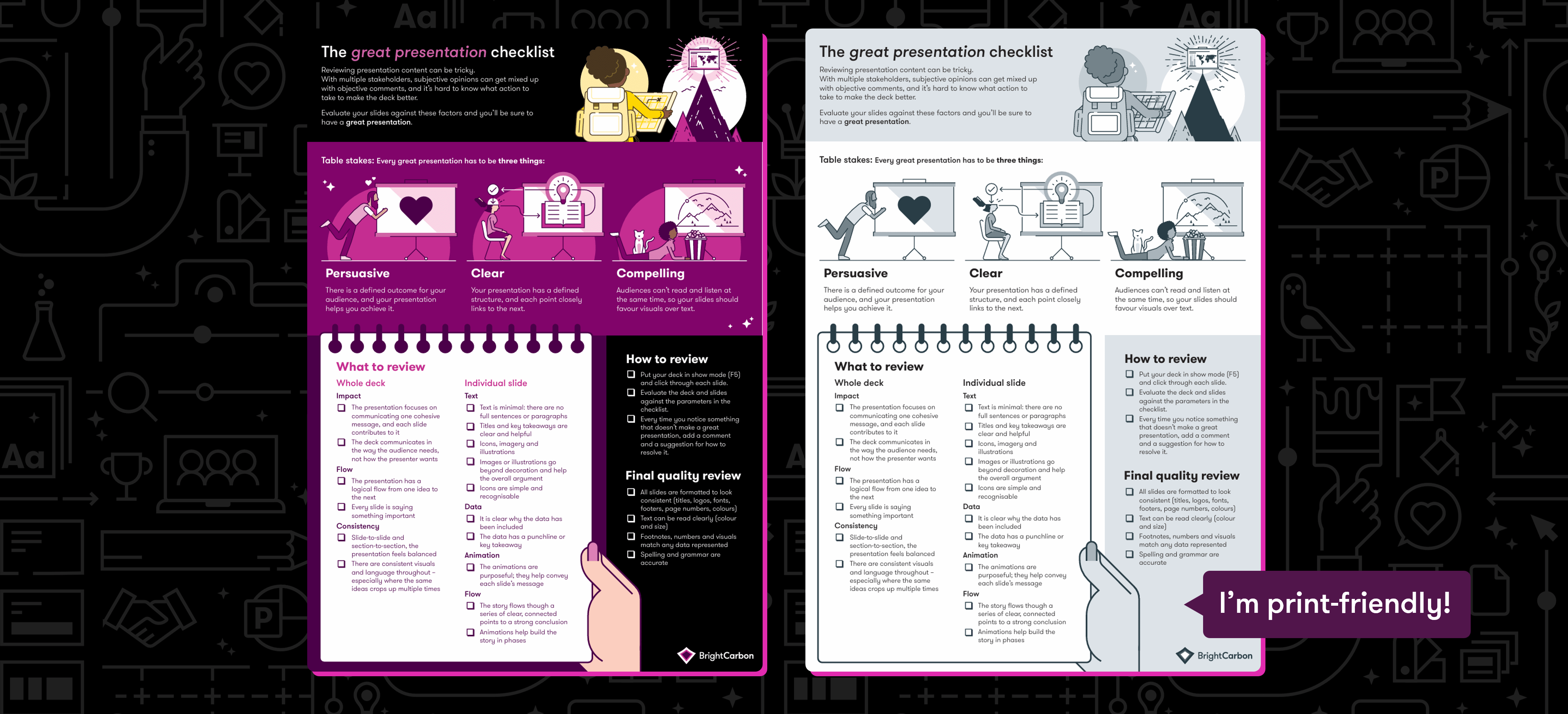
- Download The Great Presentation Checklist for effective reviews
- Download a print-friendly version of The Great Presentation Checklist
Make your comments actionable: When leaving feedback we have a tendency to make it an exercise in pointing out what’s ‘wrong’: we take on the role of fault-finders. Bill Lawrence (creator of Ted Lasso) advises writers in his writers’ room to point out a problem only if they have a solution to offer. Take that same approach with the feedback you give your peers on your group presentation. Once you’ve spotted an issue, think of a way to overcome it. Not only does this train everyone’s creative problem-solving muscles, but it ceases to be a fault-finding exercise and instead becomes a task in solution-searching.
Practise
With your presentation complete you need to get ready to present it. Regardless of whether it’s a corporate or academic presentation you need to get everyone together to practise.
In-person group presentations: If you’re doing something in-person think about your tech – are you presenting from your laptop, or linked to a screen, will you be able to see the speaker notes, do you need a clicker? Then simulate those conditions and practice together as a group. You can practise your sections as individuals, but make sure you save some time to run through everything as a team at least a few times. This will be really helpful for timing, and smoothing out potentially awkward transitions between speakers.
Virtual group presentations: Running a virtual presentation has its own tech quirks you need to be ready for. Online audiences are less invested than in-person audiences. You can’t tell if someone is looking through their emails or at your screen – even if they’re on webcam, and you have fewer tools at your disposal to engage an online audience. As you think through the logistics, always prioritise the audience experience. Make sure your decisions help the content run smoothly, keep the momentum and energy high, and remove any opportunity for your audience to tune out. Consider: will each presenter share the slides for their own section? Will one person share for all the presenters? Will you present with webcams on or not?
Then, just like in-person presentations, present as a group. Run this several times and don’t be afraid to call out someone with slow internet or bad audio – chances are they haven’t realised it’s a problem. For a stretch task record the session and have everyone watch their section back to see where they can make improvements.
A note on feedback: Don’t be afraid of giving and receiving feedback as part of this process. Because presenting is partly a performative skill, feedback can feel overly personal and unnecessarily critical. Maybe, but let’s keep an eye on the bigger picture. Use the structure of one thing you liked, and one thing you think could be improved as a way to encourage the good and weed out the bad. Make sure your practise session is a safe space where perfection is not expected, and improvement is part of the plan.
A note on animation: All effective presentations use animation. If you don’t have a way to pace the flow of information you’re putting in front of your audience, you’ll lose their attention very quickly as they read ahead to your punchline. You can of course make some crazy complex animations and builds, but you don’t need to. Even simple fades, or making use of the Morph transition in PowerPoint will give you the ability to stop your audience getting ahead of the presenters.
A note on assessments: You might think that if your academic presentation is being assessed, your audience is compelled to listen even before you hit F5 and start your presentation. True, they are being paid to evaluate you, but you still have to work to win them over and engage them. You want the best parts of your project to shine through, so don’t make it hard for your assessors to see what they are, or how your critical thinking helps you to reflect on the bits that didn’t go as planned. If you’re struggling with this, flip the script. Assume your audience doesn’t have to be there. How would you craft a presentation that keeps them willingly in their seats?
Should I use AI?
Corporate presentations: The extent to which you use AI will be dictated by your company policy. If you have been green-lit by your organisation to use AI tools in content generation, be aware of one significant factor: AI is rarely doing ‘on-brand’ well. Even with full brand kits programmed, the output is an interpretation of a set of guidelines, rather than a rigid adherence to them. We’ve done a lot of testing around brand interpretation, and you can read it in our white paper Brand-ish: why Copilot and Claude struggle with brand consistency.
Academic presentations: The first question you’ll have to answer is whether your institution permits usage of AI tools in graded work. If not, then you still have a great process to follow to create a very robust group presentation. If yes, then getting AI tools to draft your outline or even convert an outline you’ve drafted into slides may seem like a shortcut, but this distances you from the content, and if you think it’s hard to convincingly present a presentation you created, try to present one someone else made for you. AI-generated slide content is also lacking in creativity, in fact it has an aesthetic as distinct as the ‘em’ dashes its written counterpart is infamous for.
Three ways you can use AI to improve your group presentation
So taking the ‘do it for me’ approach won’t earn you extra marks, or gain credibility with a prospect, but there are ways you can use AI to make your content better.
Identify the weaknesses in your content: AI is great at giving you a second opinion. It can give you suggestions on how to make your content better, or point out weaknesses that your team has become blind to. Some questions your tool can answer at both the outline and presentation stage are:
- What is missing from my argument?
- Am I making any logic leaps?
- Is the conclusion expected?
Copilot from Microsoft will give you feedback on your presentation with the skill ‘Review my presentation’ – and give you suggestions and comments on a wide variety of areas like these and more besides.
Get over creative block: Approaching a blank slide can be intimidating. If you’re genuinely stuck, or have tried a couple of things but think there could be a better idea in there, ask your AI tool to generate a slide for you. In fact ask it to do it three times. You’ll likely have three totally different versions of the content you’re wrestling with. Evaluate what works and what doesn’t, what you like and what you don’t, and then use that knowledge to make your content better.
Prepare to present: Copilot in PowerPoint has a new skill whereby it will help you prepare to present your deck. It works a bit like a presentation coach to accurately time out your content, and it can even generate a series of potential questions you might get asked. If you don’t have Copilot, try asking your AI tool what potential questions are from your presentation, and if it thinks any are more likely to come up than others.
Hungry for more?
- For more tips and insight, join our mailing list and get articles like this right to your inbox.
- Sign up to a masterclass and see the experts demoing their wizardry in the tools you use everyday.
- Learn more about our services and see how BrightCarbon can help you with your next presentation.
[1] Ebbinghaus, H. (1885). Memory, trans. HA Ruger and CE Bussenius, New York: Teachers College.
Leave a commentRelated articles

- Sales messaging / Visual communication
- Comments: 4
As humans we find stories incredibly compelling, but why is that? And how can we make sure we're infusing storytelling in our presentations to keep our audiences engaged and invested? Read on to find out the rest of the story!

19th Feb 2019
How to write scripts for webinars, videos and eLearning
- Sales messaging / Effective eLearning
- Comments: 5
Webinars, videos and eLearning are excellent ways to push your content out to a wider audience. It’s really important, therefore, that the content we send out is engaging, and your script is going to do a lot of the heavy lifting. Here are five best practices to create compelling scripts.

Join the BrightCarbon mailing list for monthly invites and resources
Tell me more!As we were novice and non-marketing professionals, everyone took the time to explain and teach while also doing, which came in handy to feel more comfortable with what we were creating.
Marc Chaanine Jamaica Bearings