Will the real Slide Master please stand up? Now this may be a question asked at your office Christmas party, but it might also be something you need to ask of your PowerPoint template too. You might have a single master in your template, or you may have a couple. You may even have about 20 depending on maybe people have used it, edited it, and left it for dead in the past. We’re going to answer a couple of questions today: how many Slide Masters should you have, and why does it even matter?
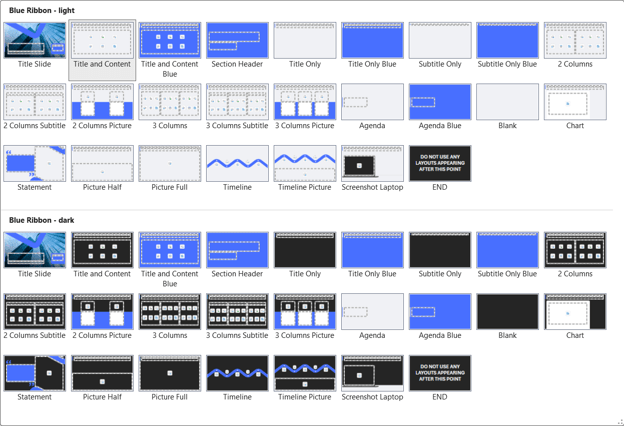
Most PowerPoint templates contain a single master, and that master includes the fonts, colours and slide layouts for a given presentation style. PowerPoint templates can store more than one master, and that can be useful for organising different types of layouts in what appear to users as “sections” within a master. One of the most common uses of this capability that we see clients using is to separate light and dark variants of a brand, as shown in this example below. You can clearly see the light master at the top, and the dark master below it.
We’ve also seen it used by clients to organise over a hundred layouts into logical “sections” such as agenda, content, data viz, quotes etc.
So what’s the problem with doing this?
The answer lies in the typical user behaviour when reusing existing content. That implies copying and pasting slides from one deck to another. And in doing so, it’s important to understand a very curious behaviour of PowerPoint.
The technical bit
When you copy a slide to the clipboard, it also copies the associated layout, and behind that, the slide master. When you then paste the slide into another deck, PowerPoint looks at the content on the clipboard and tries to work out how best to match it to the slide master in the target deck, pasting one or more of the slide/layout/master objects from the clipboard. The algorithm used to do this is undocumented by Microsoft but it includes layout and master naming, the number of placeholders, and type of placeholders detected in the source and target masters. But if you have a multiple-master deck, PowerPoint will only look at the master assigned to the slide preceding the paste insertion point.
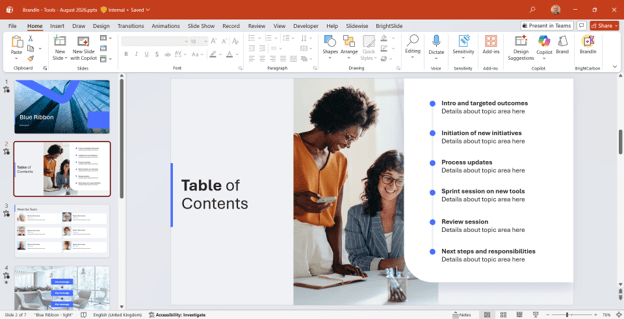
That’s a lot of words, so let’s try to visualise it. In this example, you’ve got a presentation open on slide #2.
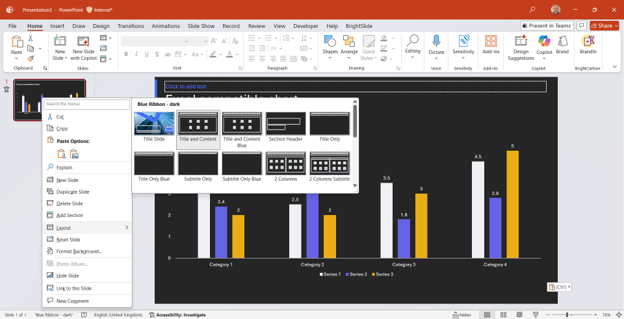
That is the slide insertion point, after which a new slide will be pasted, and slide #2 is assigned to the light master. You now switch to an existing deck with a slide you want to reuse, which happens to be linked to the dark master:
If you now copy the above slide and paste into the deck you’re working on, PowerPoint only looks at the light master assigned to slide #2 in the destination file. In this example it finds a match because both masters contain the same layouts and structure across the two different masters, so it switches from dark to light:
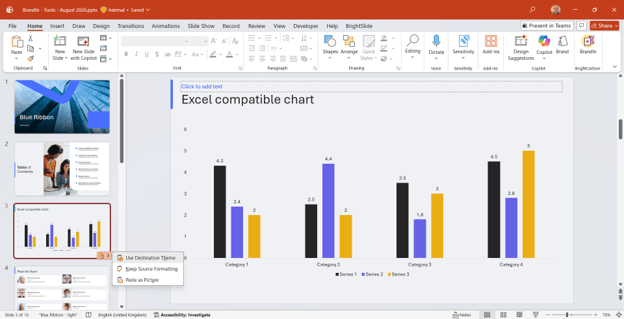
This is because the default paste action is to Use Destination Theme.
Now, some users will be familiar with the contextual menu in the above screenshot and think to themselves “But I wanted to paste it as it was in the source deck.” And as a result, they will click the Keep Source Formatting button.
At this point, PowerPoint abandons all reason and with either do one of the following:
Match to the dark master
Insert a new layout at the end of the light master*
Insert a new master and depending on the version of PowerPoint, one or all of the layouts in that master.
* Note that this is why it’s advisable to include an “END” layout in your master, as illustrated in the first screenshot.
And that is how organisations end up with what the presentation industry calls “Frankendecks”. A presentation with a mixture of masters, layouts, fonts, colours – which nobody should have to deal with, and no audience should ever have to watch.
And that’s why you should never use multiple masters in a template.
What should I do instead?
It broadly depends on the problem you’re trying to fix:
If you’re giving light and dark options, then it’s possible to do that without needing to duplicate the master. It sits in the obscure functionality of Background Styles, which you can find in the Design tab. Choose the first option for a light style and the fourth option for a dark style (there should only have ever been two choices in this menu). That switches the first four colours (background/text 1 & 2) in your theme so that placeholders and complex objects such as tables, charts and SmartArt invert their colours automatically.
If you’re trying to deploy options for things like agenda slides, chart options, or other key slide models, then you can deploy them to your whole organisation using our add-in, BrandIn. BrandIn serves up all your pre-designed on-brand slide models and your PowerPoint template in-app, without needing to create multiple masters or do a lot of lengthy programming – it’s all done via SharePoint.
Reuse Slides is a PowerPoint feature that will be phased out by 1 January 2026. If you're a fan, read on to discover what Microsoft might replace it with, and two alternatives to Reuse Slides to get you using your on-brand, pre-approved content quickly and easily across your whole organisation
For years, PowerPoint has been synonymous with boardroom presentations and academic lectures. Its default 16:9 slide ratio is tuned for projection screens, not LinkedIn grids or TikTok thumbnails. But what if the same tool that powers your pitch decks could also become your go-to design app for social media content?…
Placeholders in PowerPoint form part of a layout and keep content in the right place on a slide. But sometimes, you want the names you see in the Selection Pane in the slide to follow what you set in the master. We're going to unravel a bit of PowerPoint history and find a solution to this conundrum in the process.