Devoted BrightCarbon blog readers should be pretty clued up on how to create engaging and effective presentations using Google Slides. If that’s you, you may think your content is ready to present. But have you given any thought to accessibility? Thinking about different ways people may access your content, and adjusting your deck to make it more accessible, helps you unlock your content for as many people as possible. To kick things off, we’ve put together a list of the best Google Slides accessibility tools and add-ons.
Google Slides’ accessibility features are only available when the viewer is directly editing or viewing a presentation on their own computer, not when its being presented through video call, such as over Google Meet, Microsoft Teams, or Zoom. Because of this, this article only focuses on the accessibility of Slides presentations when edited and viewed directly on the user’s own computer. You’ll need to share your deck with your audience to enable them to make the most of the majority of these features. If you want to know how to make presentations over video calls more accessible, check out this great article with some useful tips and tricks.
PowerPoint user? Check out our mini-series on increasing the accessibility of PowerPoint presentations for people with dyslexia and colour blindness.
Screen readers
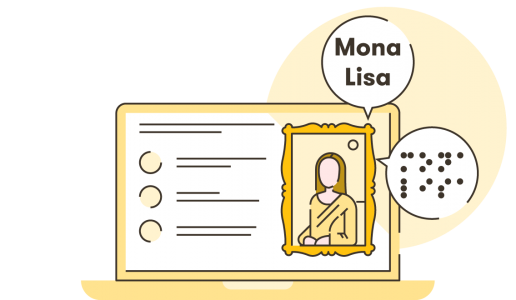
Screen readers are a daily tool for many people with visual impairments and other disabilities. To activate screen reader support in Slides, press Ctrl + Alt + Z. If you’re using a screen reader to create and present your deck, Google has a great guide on how to use keyboard shortcuts to create in Slides with a screen reader. When designing presentations that will be viewed by screen reader users, remember that the user will ‘tab’ through each slide and the screen reader will read aloud every element that’s on the slide, including titles, body text, bullet points, and image alt text. You can find out more about alt text in Google Slides later in this post!
Braille display
People with visual impairment can use a braille display to read (and edit) presentations in Google Slides. This is enabled by third-party braille hardware. We haven’t been able to test this feature ourselves but Google’s guide is great!
Present slides with captions
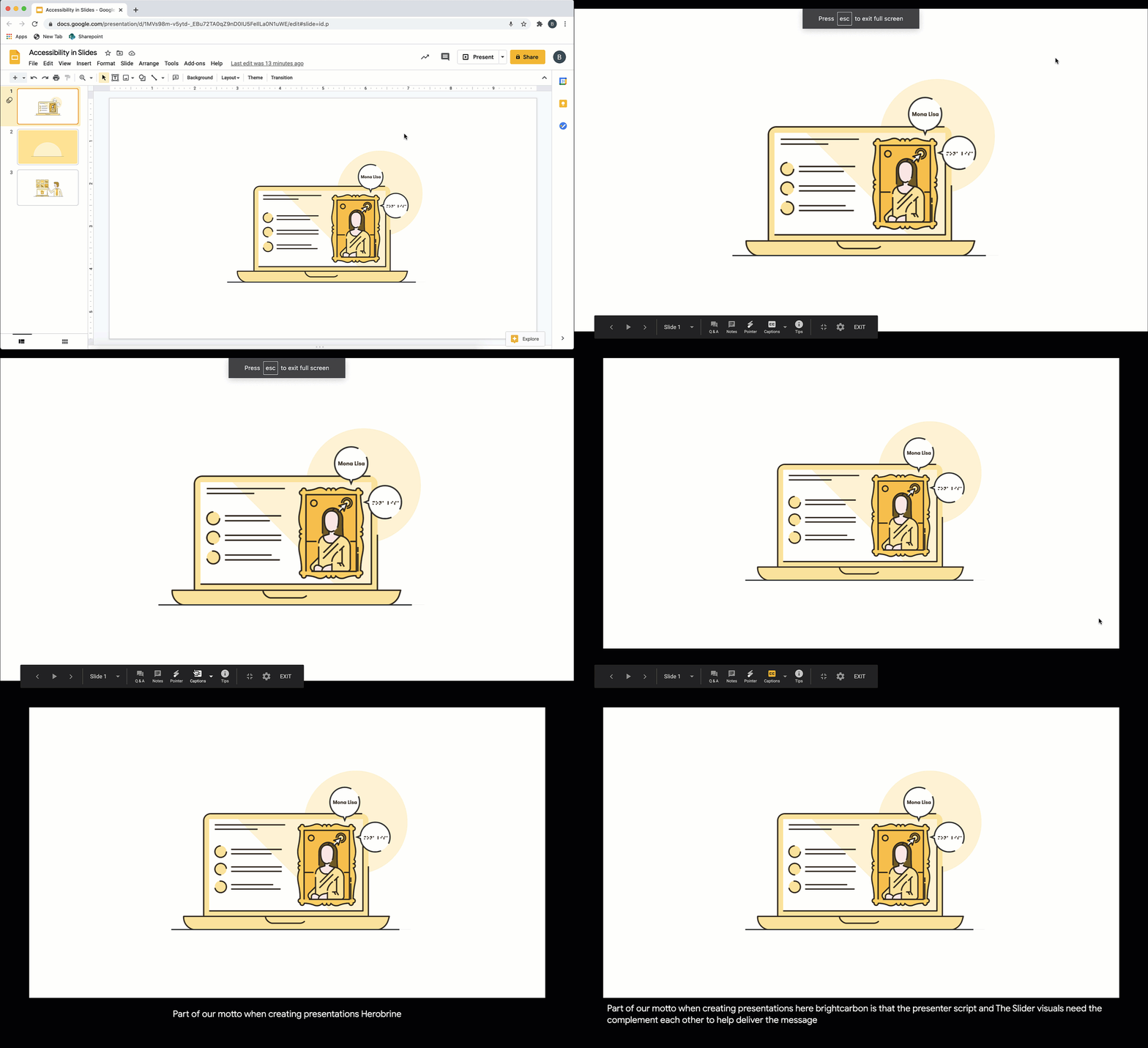
One of BrightCarbon’s golden rules is that the presenter’s script and the slide visuals need to complement rather than duplicate each other to effectively deliver a message. But when you’re presenting to those who are hearing impaired, elements of your message may be missed particularly if internet connectivity problems can cause sound issues. One solution is turning on automatic captions. This will display the presenter’s words in real time at the bottom of the screen.
This feature is available in US English only, using the Chrome browser on a computer.
How to present Google Slides with captions:
Make sure your microphone is turned on and working properly.
Open your presentation then click Present in the top right corner.
Hover your cursor over the slide and a bar will appear. Click on the CC button.
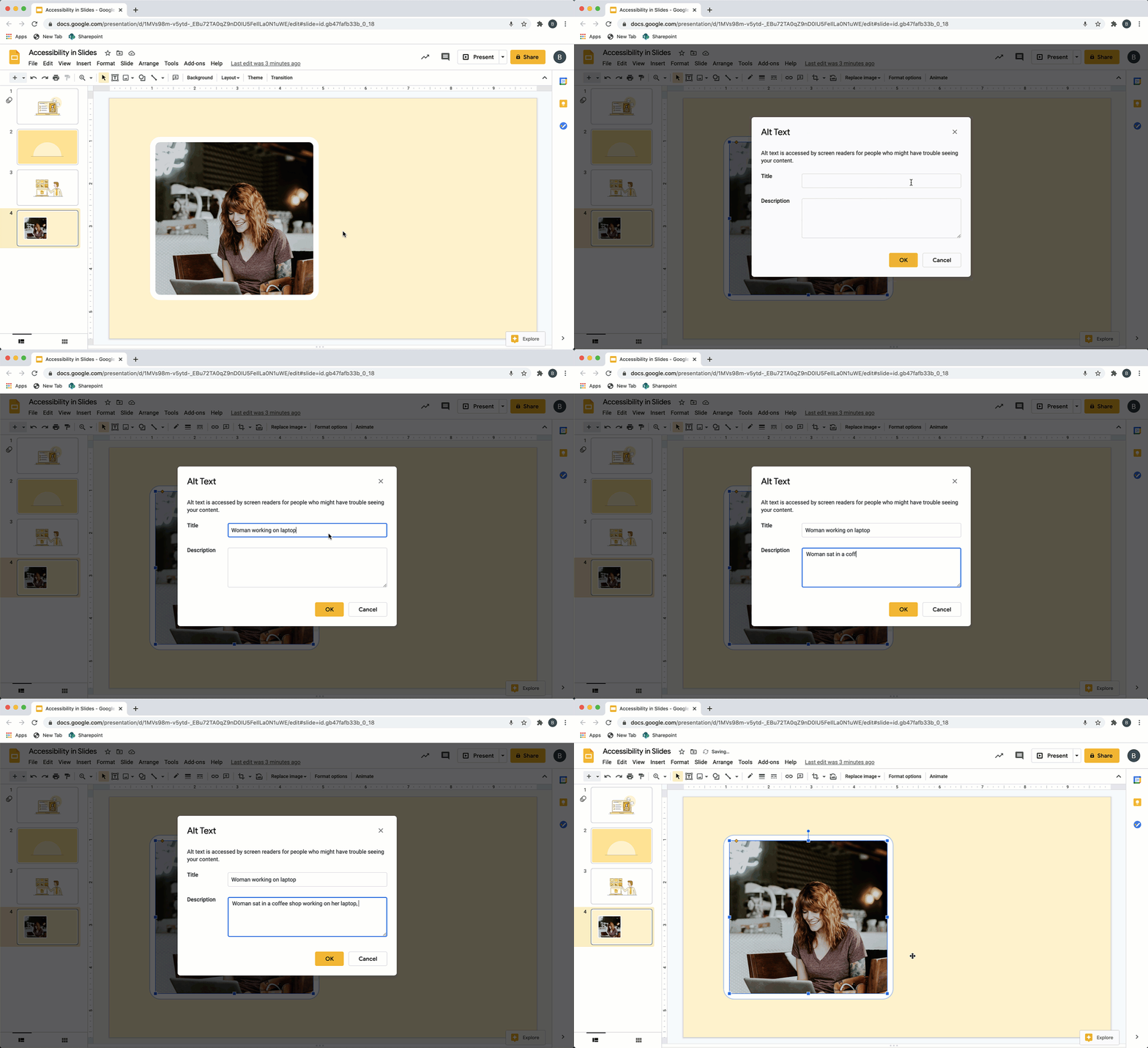
Alternative text is the best way to allow those who are visually impaired or have certain cognitive disabilities to understand visual content (images, drawings and graphics). Screen reader users can use the Alt/Text tool to read the images when viewing a presentation. If you don’t add Alt/Text, a user will just hear the word “image” with no further description. Image descriptions in Google Slides are generated automatically, but it’s important to double check to ensure the text is correct and conveys the key message your image or graphic is communicating.
How to:
Select an image, drawing or graphic in your presentation.
Rightclick and scroll to Alt text.
Enter a title and description in the pop-up window. Click OK to save.
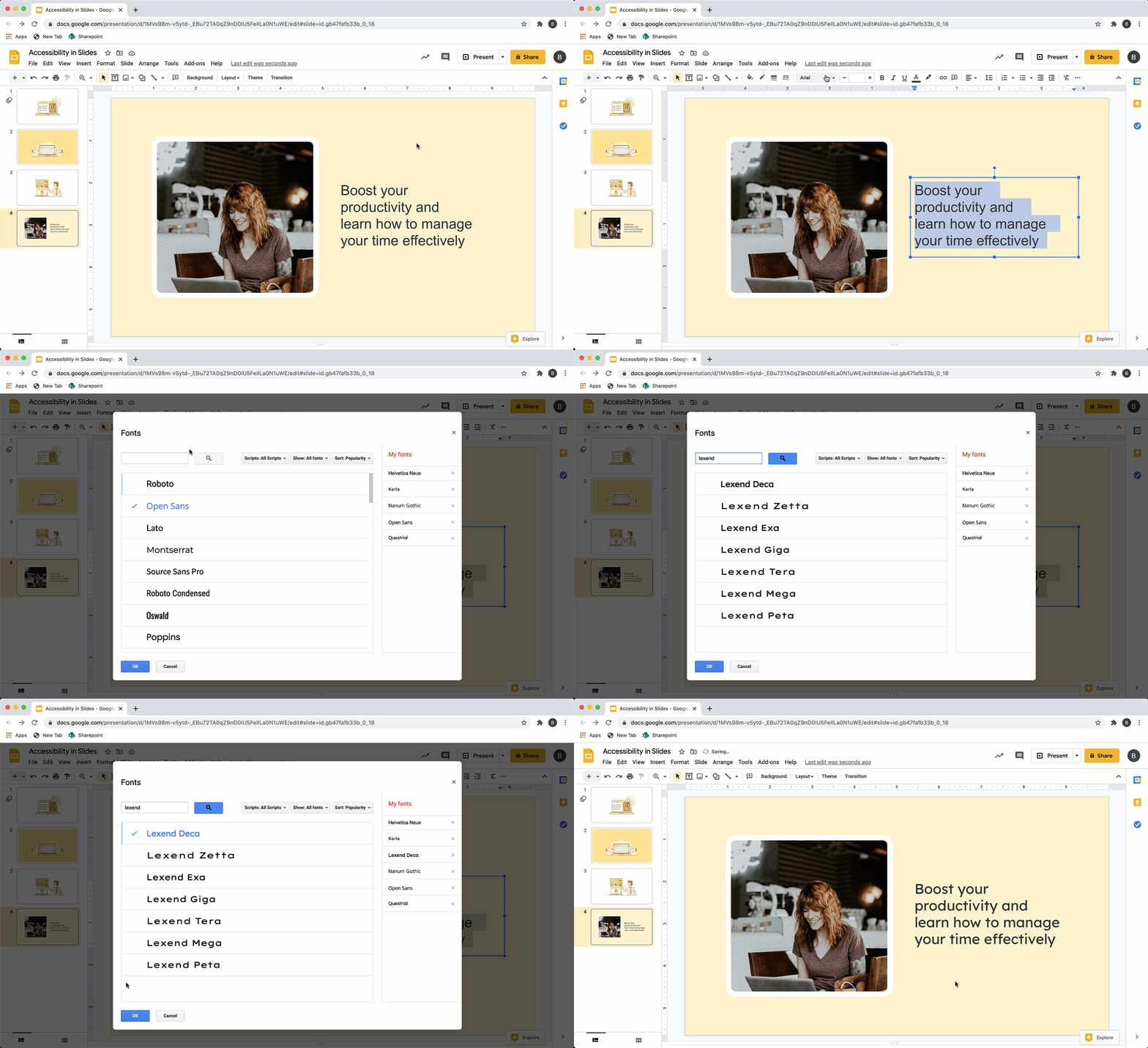
“Lexend” is a collection of seven typefaces designed to help those with dyslexia read slide content. You can add Lexend to your Slides library.
How to:
Go to the Font menu in the toolbar,
Select the More fonts
Search for Lexend and, once you’ve found it, add it to your list of saved fonts.
You can now use Lexend in Slides!
Share a presentation in HTML view
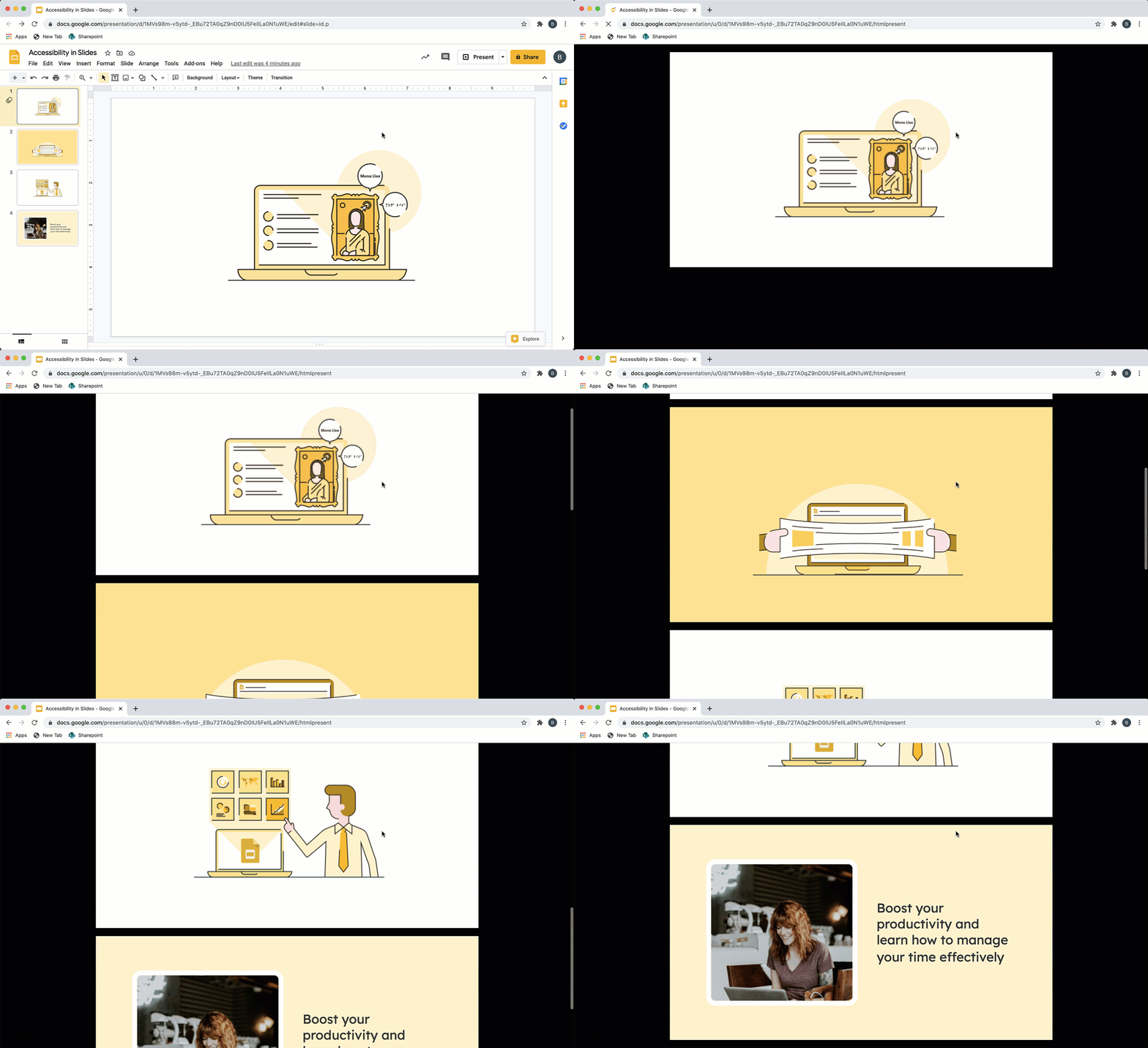
With Google Slides HTML view, screen reader users can access a whole presentation in a single, scrollable HTML page. This is easier to navigate than a presentation displayed one slide at a time.
How to:
To access HTML view, use the keyboard shortcut Ctrl + Alt + Shift + p (on Windows or Chrome OS) or ⌘ + Option + Shift + p (on a Mac).
Accessibility Checker for Google Slides
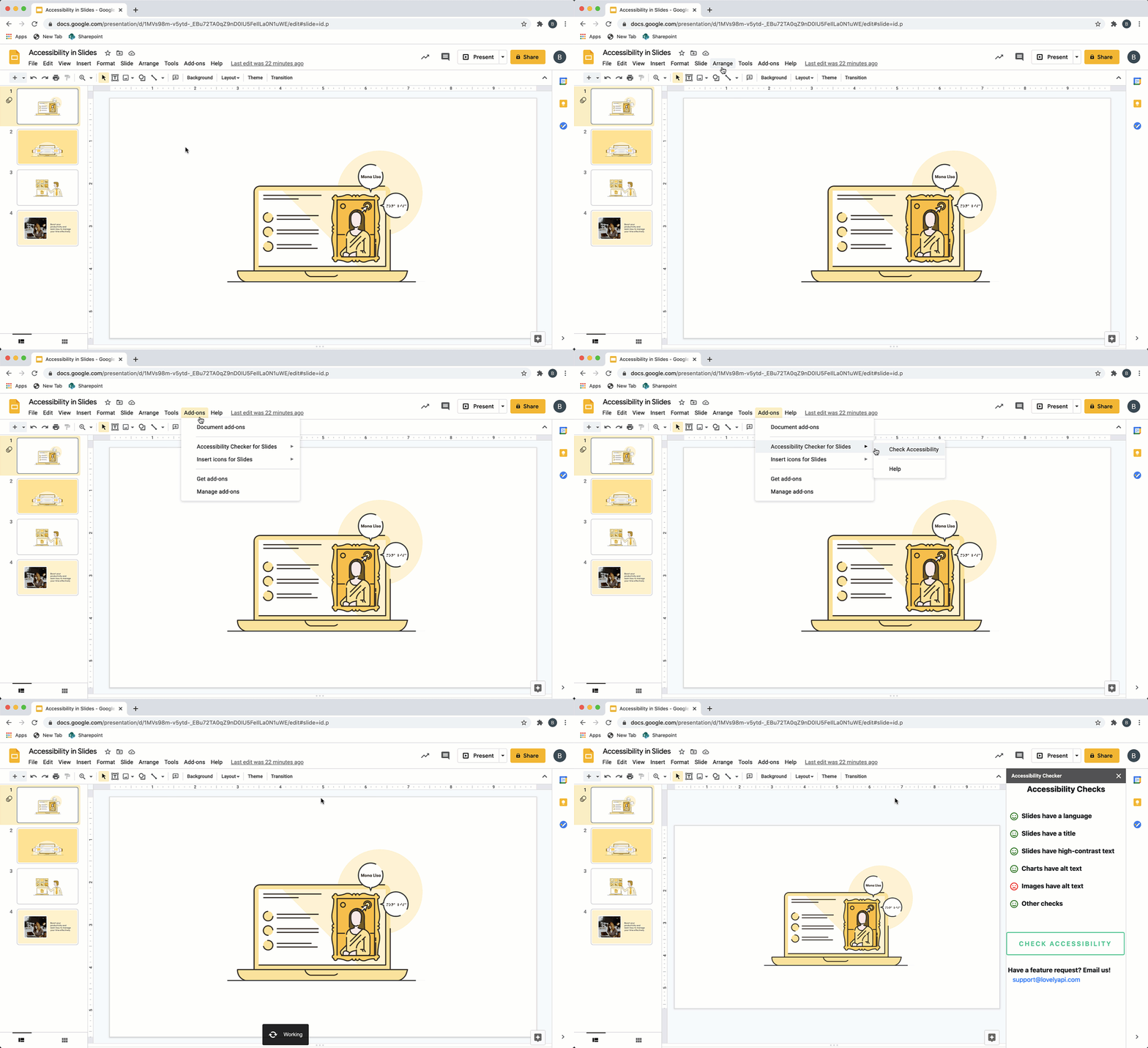
‘Accessibility Checker for Google Slides’ scans presentations looking for things they lack in terms of accessibility, like text contrast or images with alternative text. These items appear on a checklist with smile or frown emojis. The app doesn’t tell you how to fix them, it just points out what could be improved or corrected.
How to:
Download the app
Click on Add-ons on your toolbar and select to Accessibility Checker for Google Slides
The app will scan your document then the checklist will pop up
Now we’ve spilt the beans on the best Google Slides accessibility tools we’ve come across, we’d love to hear your suggestions! Leave them in the comments below.
And if you’re on a roll, we’ve got loads more info on how to use Google Slides in our Ultimate Guide.
If you're using Google Slides regularly then it's worth getting to know how you can integrate it with your other favorite Google Workspace programs - this time, Google Keep!
If your organization is considering using Google Workspace it will impact the way you create presentations. Microsoft PowerPoint will no longer be your default and you’ll need to count on Google Slides. Before you make a change like this, it can be hard to know what to expect. How might your business benefit? What are the potential downsides? How can you make the transition as smooth as possible? Let's find out!